App Store Metadata Editor
Edit your App Store title, subtitle, and keywords directly from AppSprint ASO. Pull live metadata from App Store Connect, optimize it, and push changes back.
March 23, 2026
What is App Store metadata editing? App Store metadata editing is the process of writing and optimizing your app's title, subtitle, keyword field, and description to maximize search visibility and conversion within Apple's character limits.
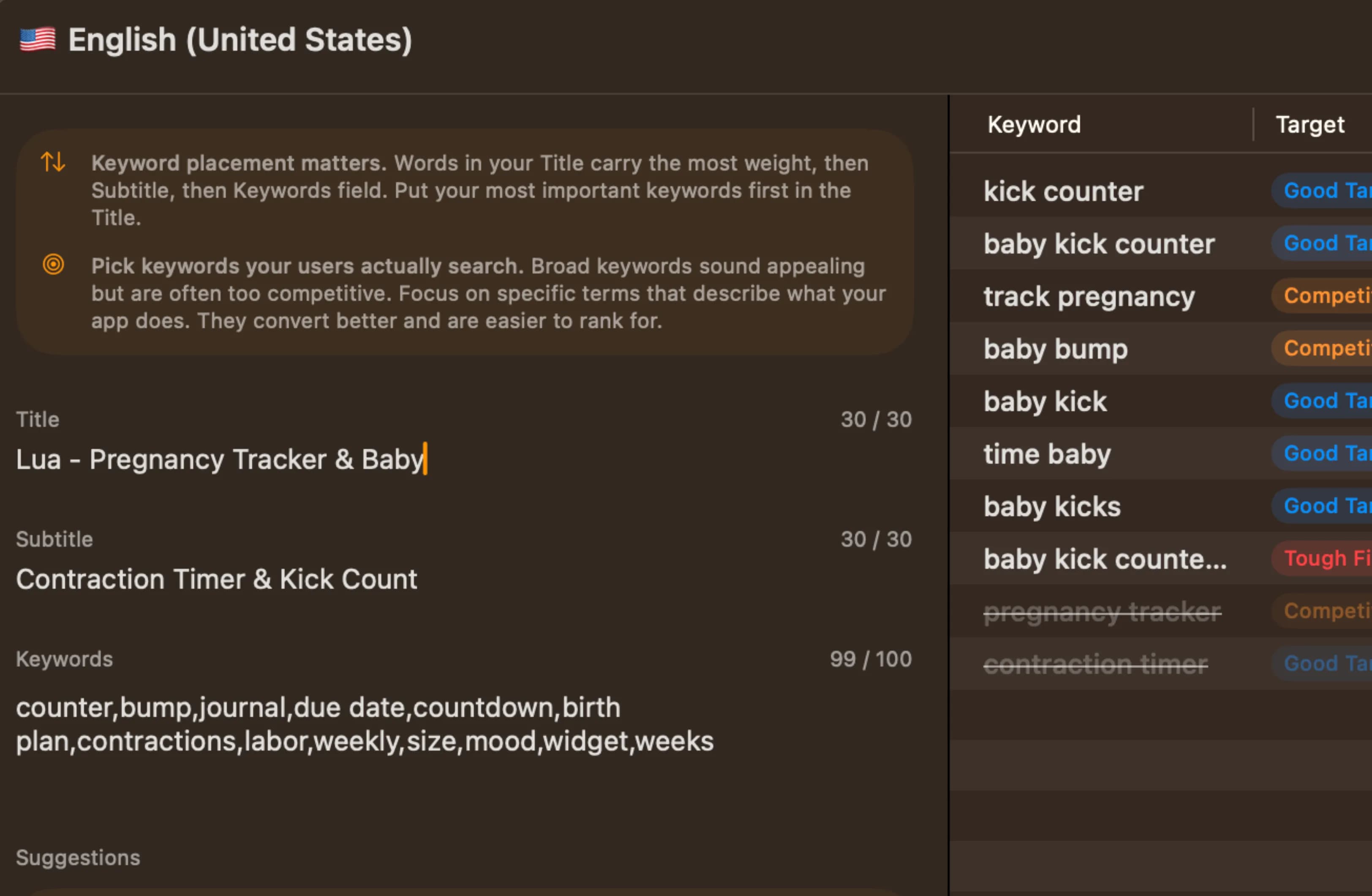
Stop switching between tabs to update your metadata
Every developer doing ASO knows the workflow: research keywords in one tool, open App Store Connect in another tab, copy-paste your findings, count characters manually, and hope you didn't exceed the 100-character limit. It's tedious, error-prone, and it means your keyword research and your actual metadata live in completely separate places.
AppSprint ASO's metadata editor brings everything into one screen. Pull your live metadata from App Store Connect, edit your title, subtitle, and keyword field with real-time character counts, and push the changes back — all without leaving the app where you did your keyword research.
This isn't about adding complexity. It's about removing the friction between "I found good keywords" and "my app is actually using those keywords."
How it works
The metadata editor connects your keyword research directly to your App Store listing. Here's the workflow.
-
Connect your App Store Connect account. Link your account once, and AppSprint ASO can pull your current metadata for any of your apps. This is a secure connection — AppSprint ASO never stores your credentials.
-
Pull your live metadata. With one click, AppSprint ASO fetches your current title, subtitle, keyword field, and description from App Store Connect. You see exactly what's live right now, with character counts for each field.
-
Edit with keyword data alongside. This is where the editor shines. Your keyword research results — complete with popularity scores, difficulty ratings, and targeting labels like Sweet Spot or Hidden Gem — sit right next to your metadata fields. Found a keyword with popularity 45 and difficulty 22? Drag it into your keyword field and see the character count update in real-time. No more mental math about whether "habit tracker simple,daily routine" fits in 100 characters.
-
Check your work. Before pushing changes, AppSprint ASO shows you a diff of what changed. You can see exactly which keywords you added, removed, or rearranged. The character counter turns red if you exceed any field's limit.
-
Push back to App Store Connect. When you're happy with the changes, push them back. AppSprint ASO updates your metadata in App Store Connect, and you can submit the new version for review from there.
Why this matters for your workflow
The gap between keyword research and metadata implementation is where most developers lose momentum. You spend 30 minutes finding great keywords, then you open App Store Connect and realize you need to rearrange your entire keyword field to fit the new terms. You start counting characters, realize you're at 103, remove a comma, lose track of what you changed, and end up with something that's probably fine but you're not sure.
With the metadata editor, that whole process compresses into a single screen. Research, edit, verify, push. No tab-switching, no manual character counting, no copy-paste errors. Whether you're optimizing your own app or managing listings for clients, the workflow is the same.
Real-time character management
The App Store keyword field is exactly 100 characters. Your title can be up to 30 characters. Your subtitle gets 30 characters. These are hard limits — exceed them and your submission gets rejected.
AppSprint ASO shows live character counts for every field as you type. The counter updates instantly, showing you exactly how many characters you've used and how many remain. When you're at 95 characters in your keyword field and debating whether to add one more term, you can see immediately whether it fits.
This sounds like a small thing until you've spent 10 minutes trying to figure out why App Store Connect rejected your submission because you were 2 characters over the limit.
From the trenches
A developer was managing a productivity app with decent traction — about 50 downloads per day. He'd been doing keyword research in AppSprint ASO and found three new keywords worth targeting, all labeled Sweet Spot (solid popularity, manageable difficulty). But his keyword field was already full, so he needed to remove some underperforming terms to make room.
Before the metadata editor, this would mean: open AppSprint ASO, note the new keywords, open App Store Connect, try to remember which keywords weren't performing (switch back to AppSprint ASO to check tracking data), edit the keyword field while counting characters, submit, and hope he didn't break anything.
With the metadata editor, he pulled his live metadata, saw his current keyword field with character count, checked his keyword tracking data to identify the three lowest-performing terms, swapped them for the new keywords, confirmed the character count was at 98/100, and pushed the changes. Total time: 8 minutes. Two weeks later, the new keywords were driving an additional 15 downloads per day.
The metadata editor didn't make his keyword research better. It made acting on that research fast enough that he actually does it regularly instead of putting it off.
Combining the editor with your ASO workflow
The metadata editor works best as part of a regular optimization cycle:
- Check your keyword tracking to spot underperforming terms.
- Run competitor analysis to find new keyword opportunities.
- Open the metadata editor and pull your current metadata.
- Swap underperforming keywords for new candidates — prioritize terms labeled Sweet Spot or Hidden Gem.
- Push the changes and monitor results over the next two weeks.
This cycle takes about 20 minutes every two weeks, and it's how solo developers, freelancers, and small teams steadily improve their rankings without turning ASO into a full-time job. If you want to learn how to evaluate whether your changes are working, our guide on tracking ASO performance walks through the metrics that matter.
Start editing your metadata today
Your keyword research is only as good as your ability to act on it. The metadata editor closes the gap between finding keywords and using them, so you can optimize your listing in minutes instead of an afternoon.
Start your free trial — €0.00 due today — connect your App Store Connect account, and see your live metadata alongside your keyword data. Your next metadata update is 8 minutes away.
Frequently Asked Questions
- Can AppSprint ASO change my App Store listing directly?
- AppSprint ASO can pull your current metadata from App Store Connect and push updated metadata back. You review and approve everything before it goes live.
- What metadata fields can I edit?
- You can edit your app title, subtitle, keyword field (all 100 characters), and description. AppSprint ASO shows character counts in real-time so you never exceed App Store limits.
- Do I still need to use App Store Connect?
- AppSprint ASO handles the metadata editing workflow, but your app still lives on App Store Connect. Think of AppSprint ASO as a better interface for the ASO parts of your listing.
- Can I edit metadata for multiple localizations?
- You can manage metadata for your primary localization. Multi-language support is on the roadmap.
Research, optimize, grow
Don't waste time guessing keywords or overpaying for enterprise tools you'll never fully use.


Trusted by 200+ developers