
Find your App Store Connect API key
Create the API key AppSprint ASO needs to read and update App Store metadata for your apps.
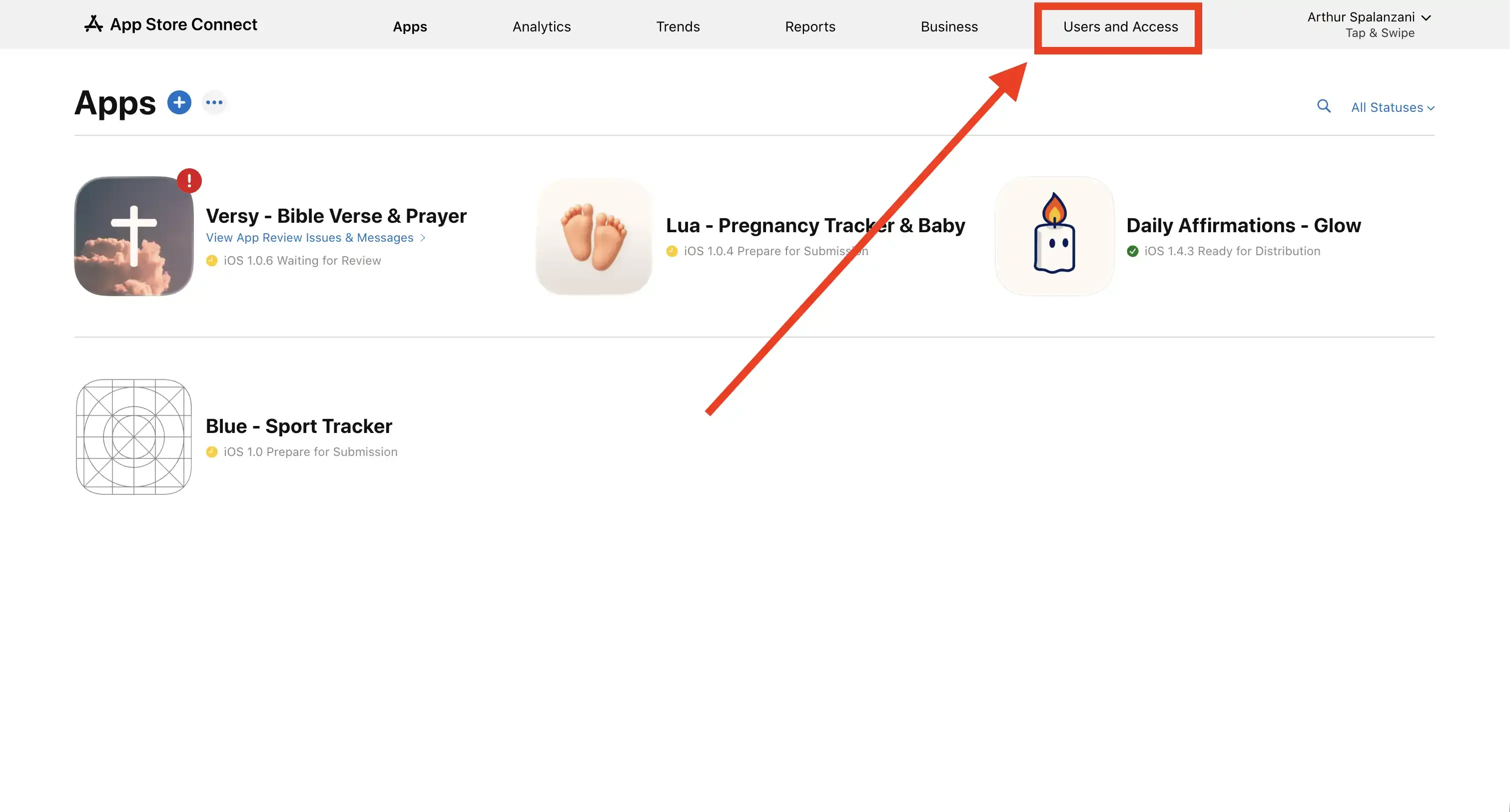
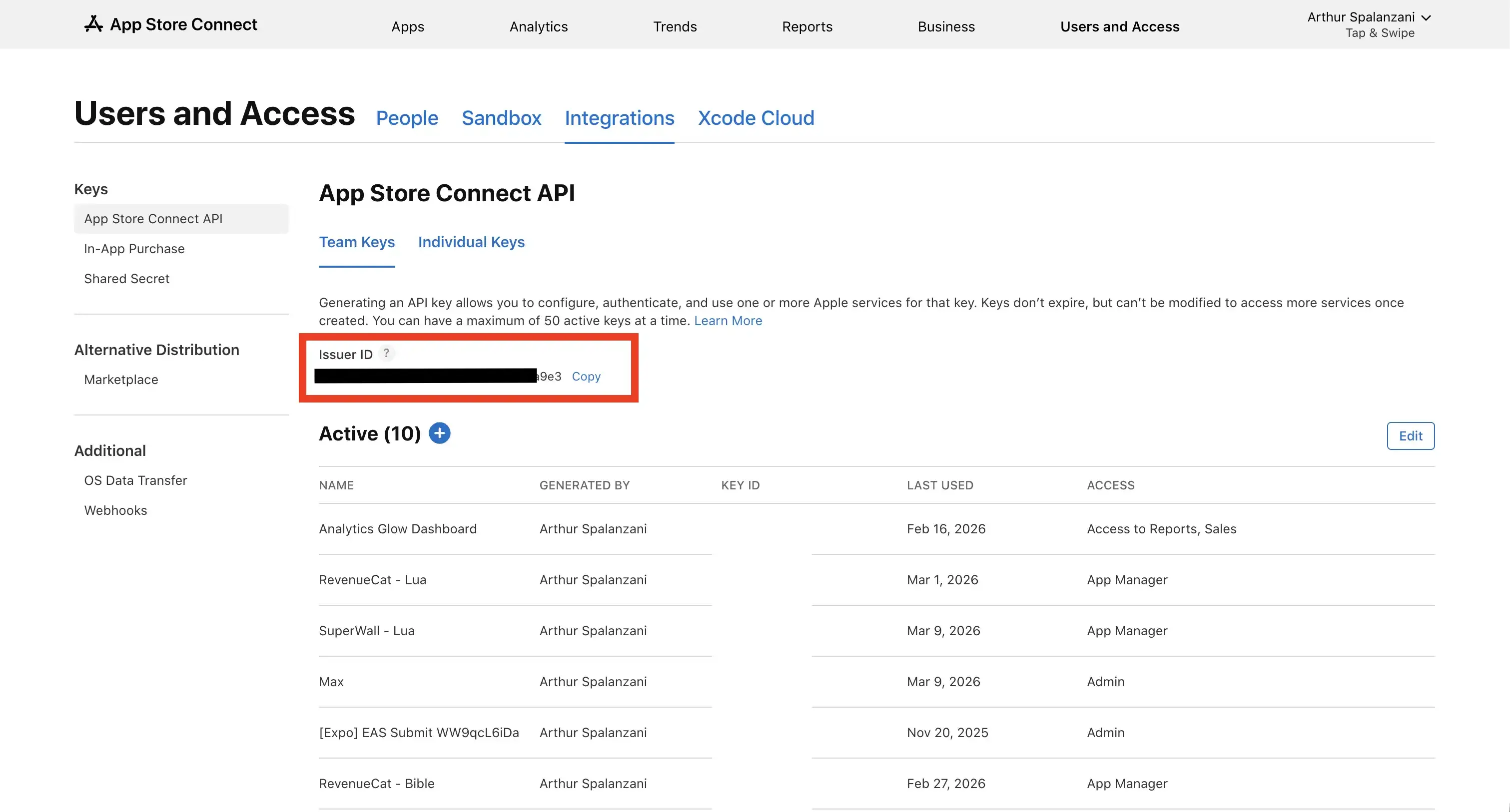
Go to Users and Access
Sign in to App Store Connect, then click Users and Access in the top navigation bar.
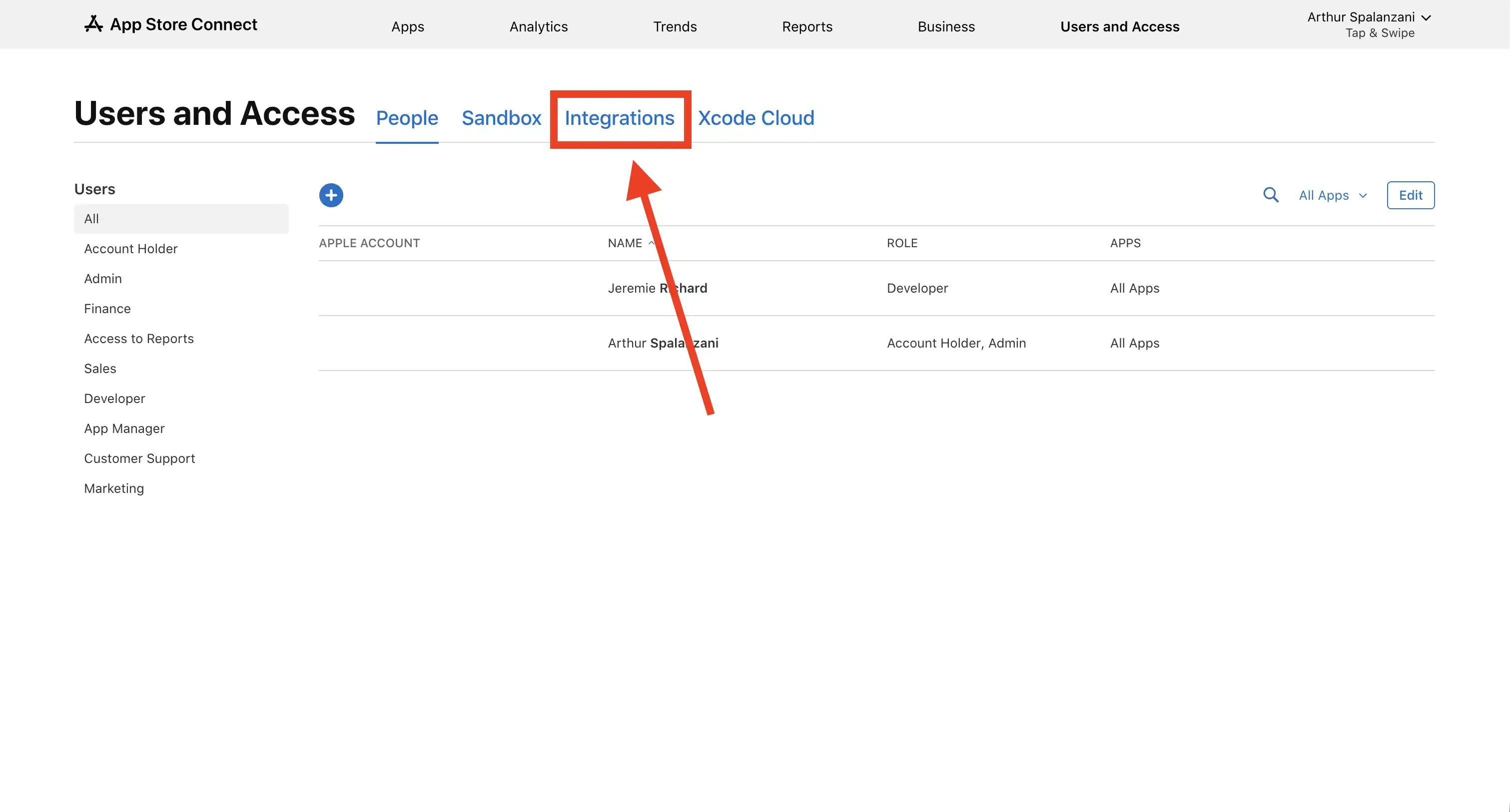
Open Integrations
Click the Integrations tab, then select App Store Connect API in the left sidebar under Keys.
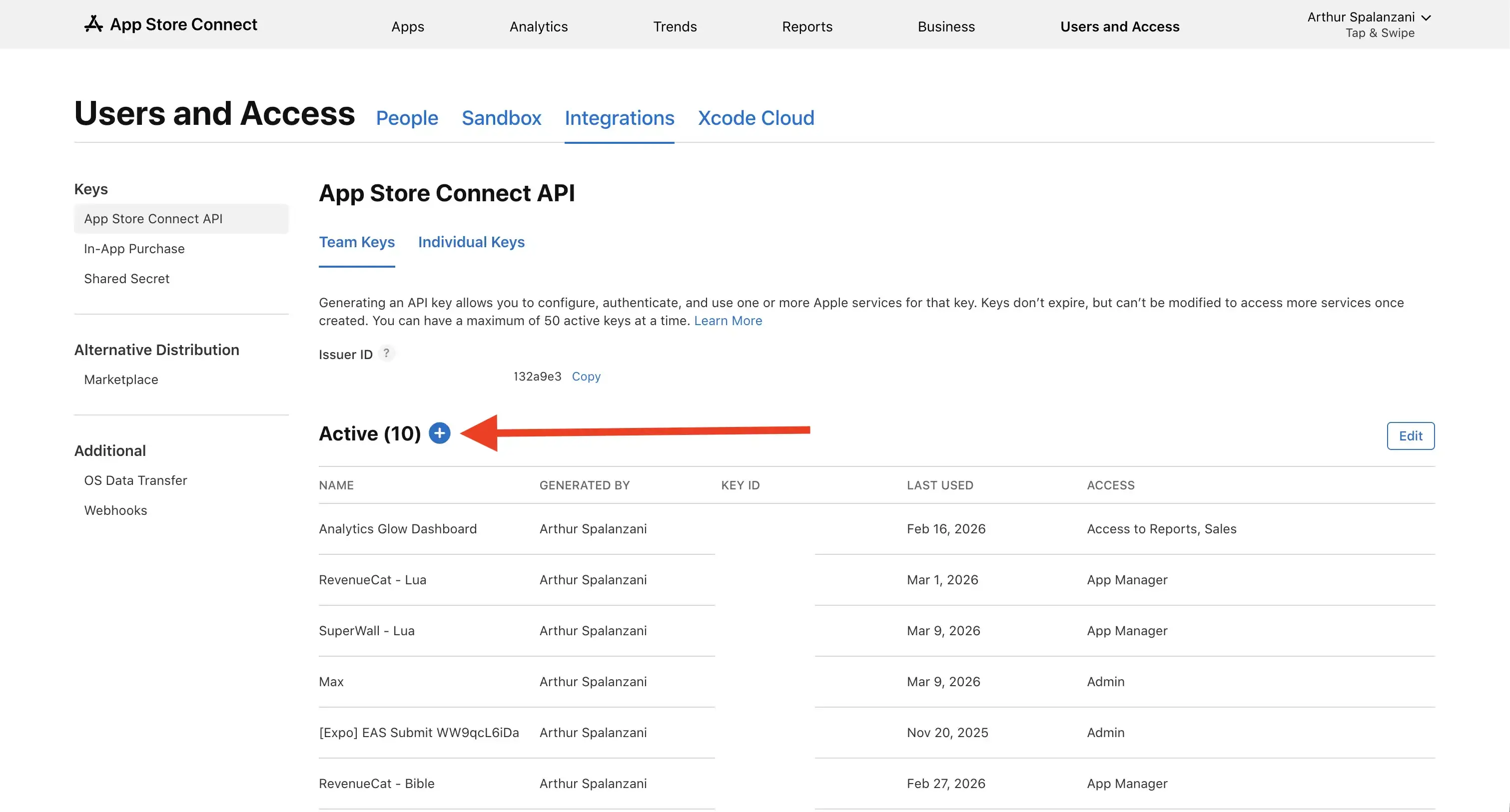
Generate a new API key
Click the plus button next to Active to create a new key.
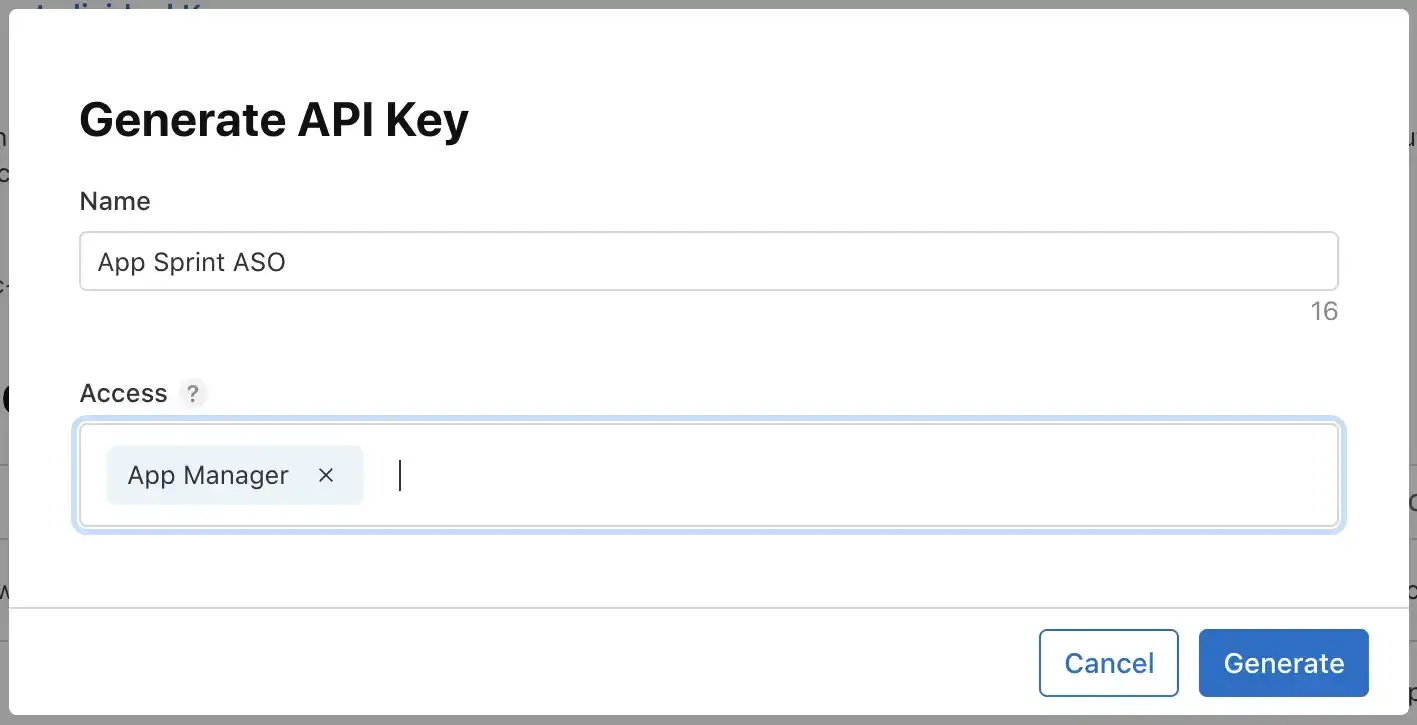
Name it and select App Manager
Enter any name, such as AppSprint ASO, and select the App Manager role. Then click Generate.
Copy your Issuer ID
The Issuer ID is shown at the top of the page. Click Copy, then paste it into the Issuer ID field in AppSprint ASO.
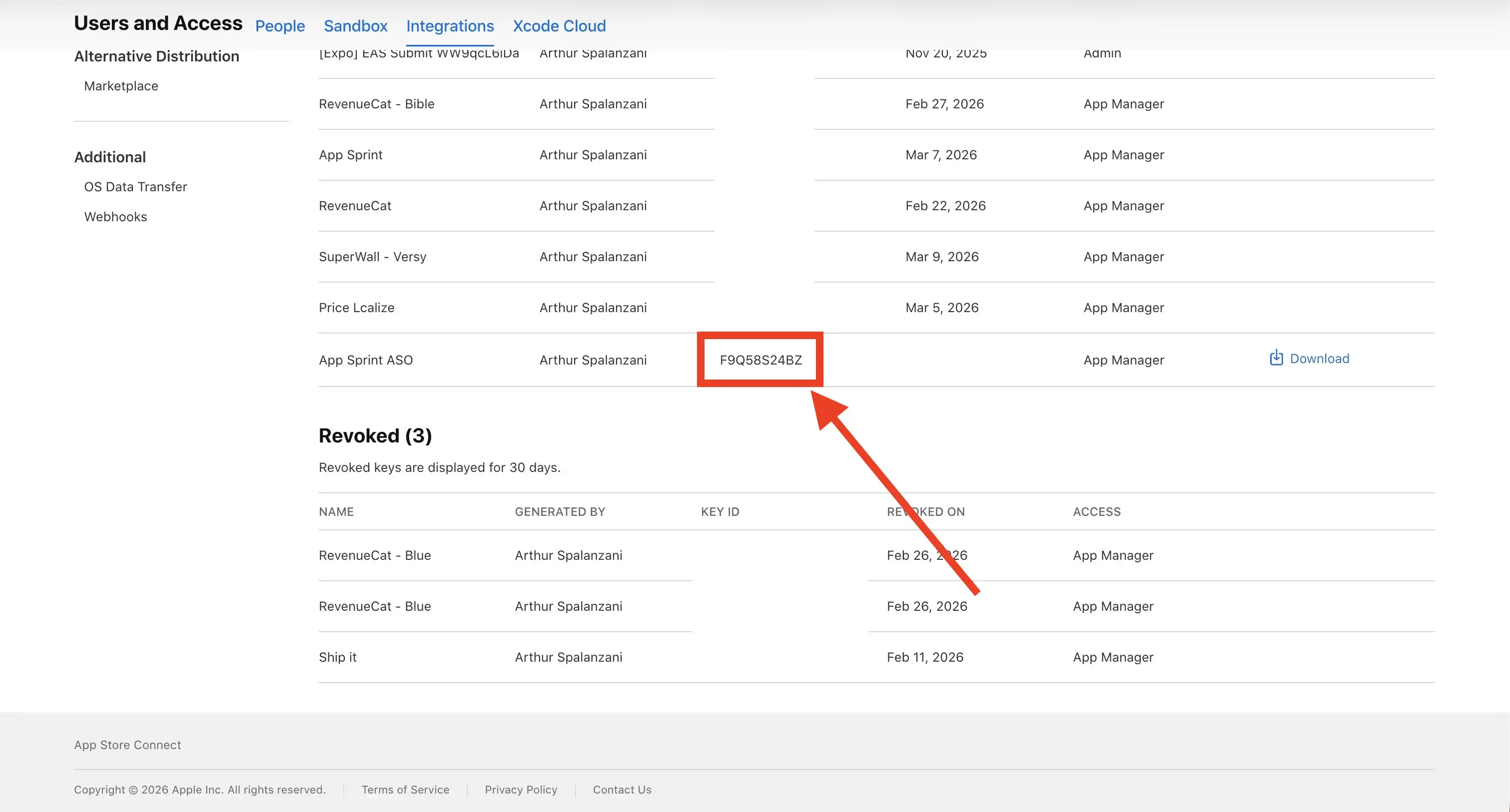
Copy your Key ID
Find your newly created key in the list, copy the Key ID, and paste it into the Key ID field in AppSprint ASO.
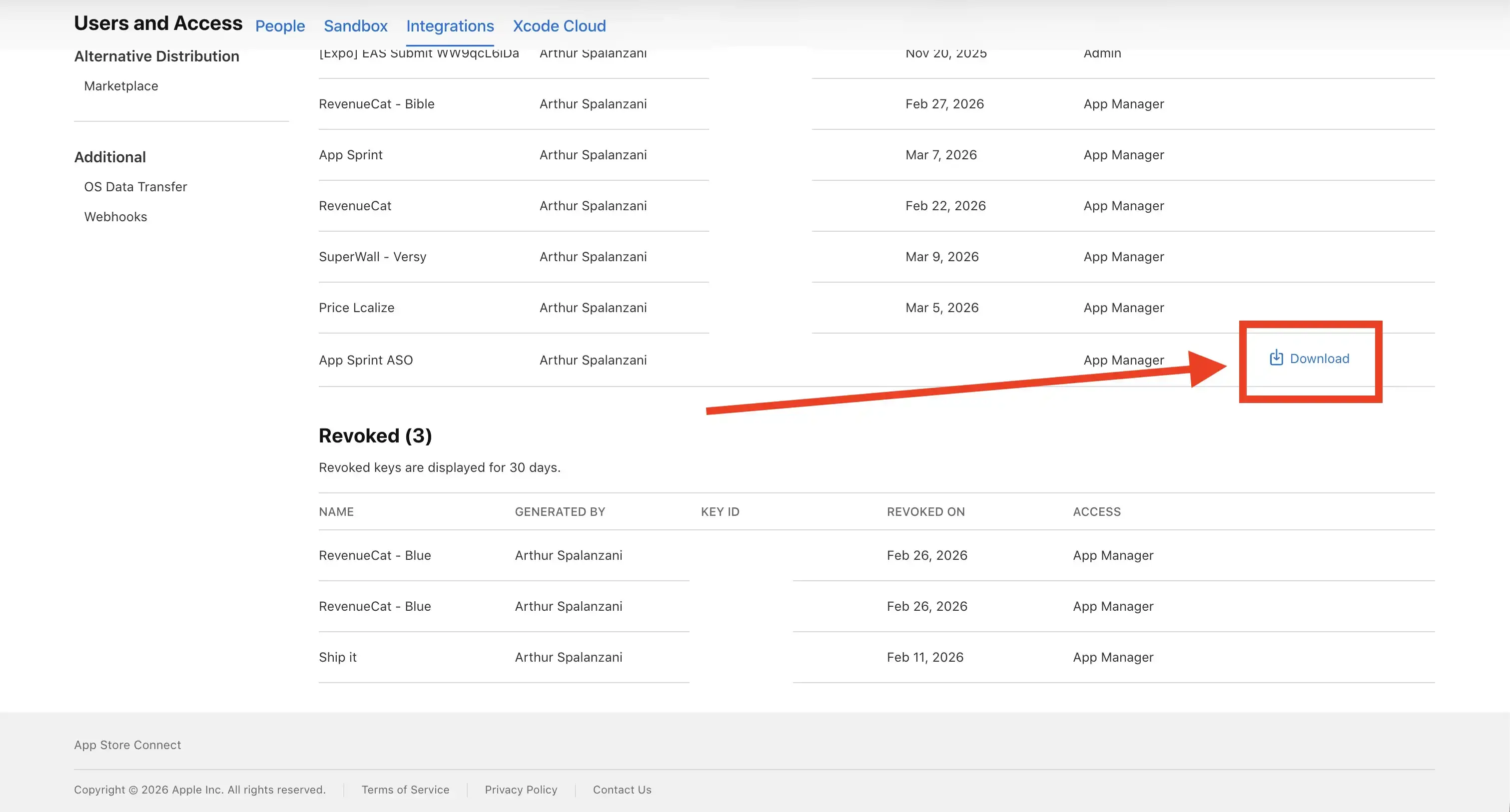
Download the .p8 file
Click Download to save the API key file. You can only download it once, so keep it safe. Select it in the .p8 file field in AppSprint ASO.
Back in AppSprint ASO, paste the Issuer ID and Key ID, then select the downloaded .p8 file. The credentials are saved locally in Keychain. Need the ad integration too? Open the Apple Ads guide.